DVD Easter Eggs | Software | Movies | Music | TV | Books | Art Bloopers | Drink Recipes
[Eeggs.com Logo] The Easter Egg ArchiveTM
EEGGS.COM
Google
Web eeggs.com
Home > Software > Application Software > Word (Microsoft) Easter Eggs Add an Egg | Help | Discussion
   
Word (Microsoft) - Typing Exercise
1. Open a new word document
2. Type "=rand(200,99)" (without the quotes)
3. Press enter
4. Wait a few second and see
5. try typing after "=rand" any variation from (1,1) to (200,99)to see different results; the first number being the repetition and seconde the number of times in a row...
Special Requirements:
Avg. Rating:    7.1 of 10 - (642 votes cast)
Your Rating:   
Contributed By:
widz on 06-01-2004
Reviewed By:

Pictures Click on the thumbnails for a full-size image, or send in your own
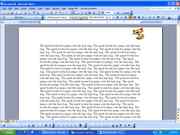
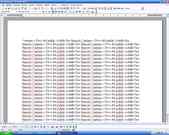
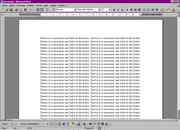
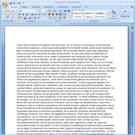
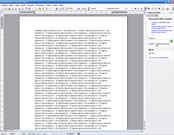
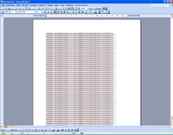
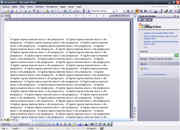
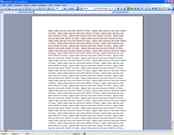
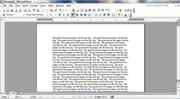
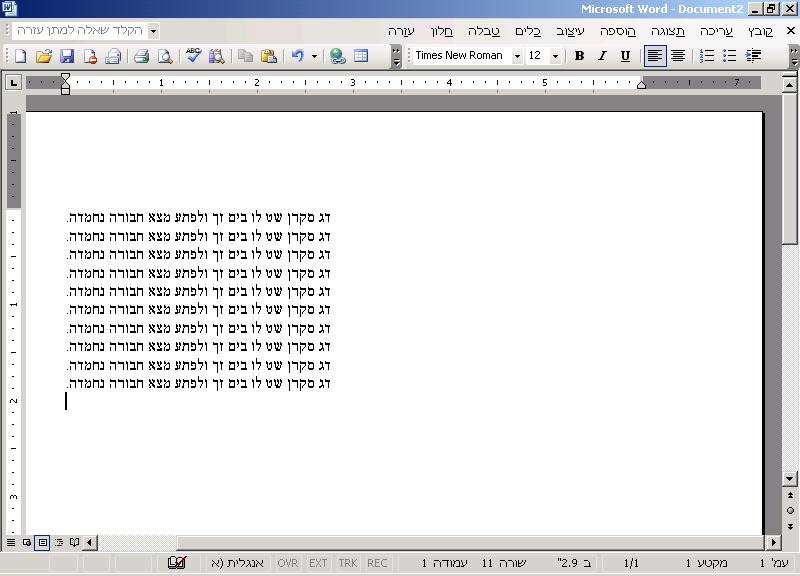
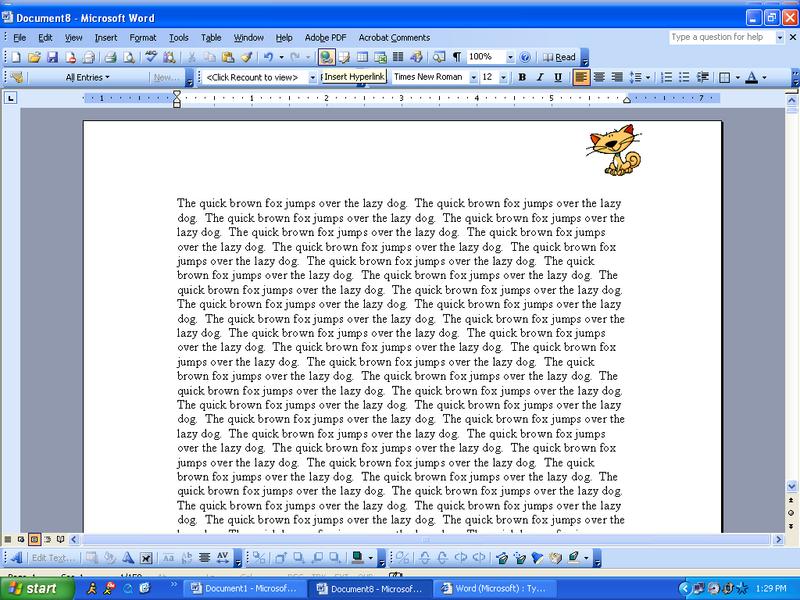
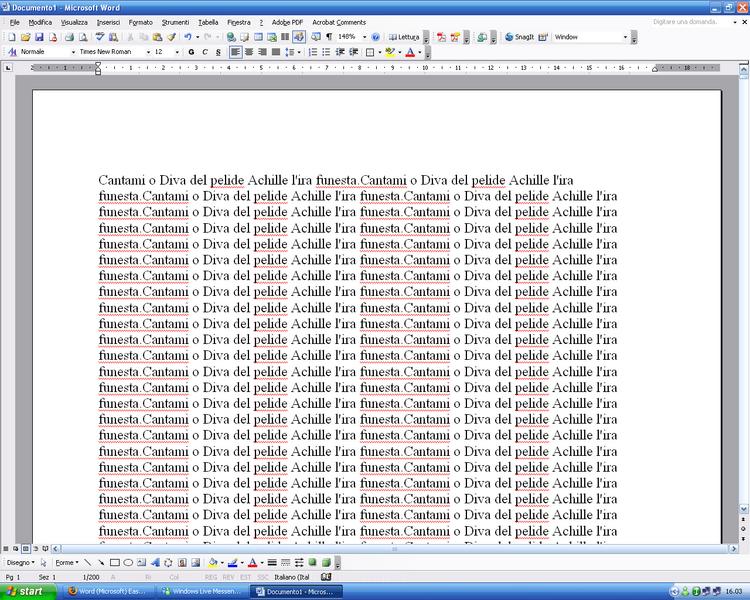
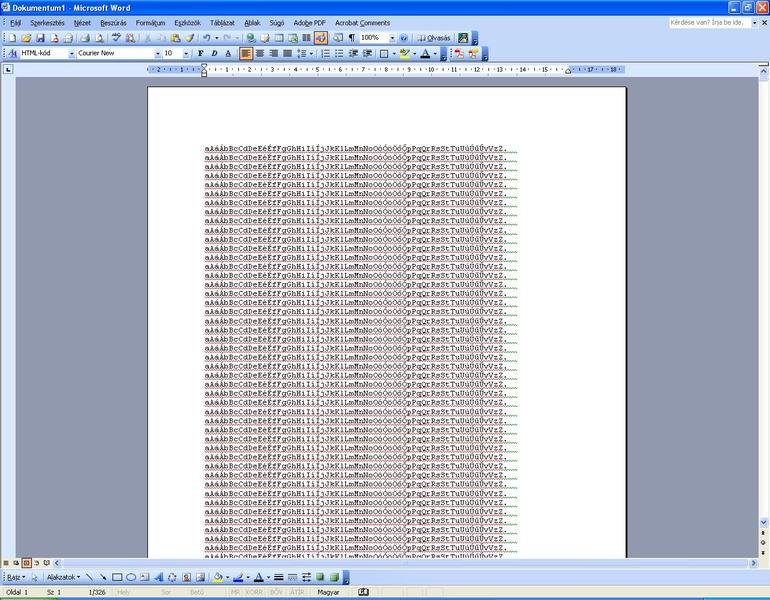
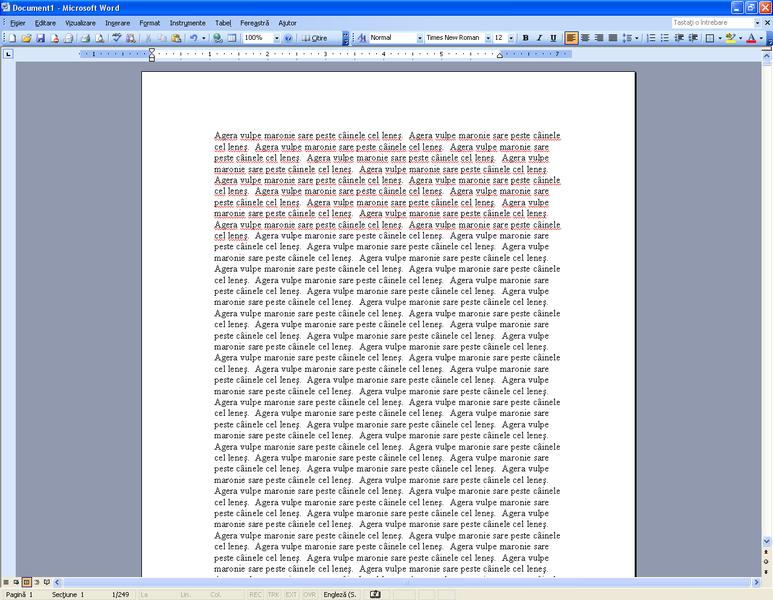
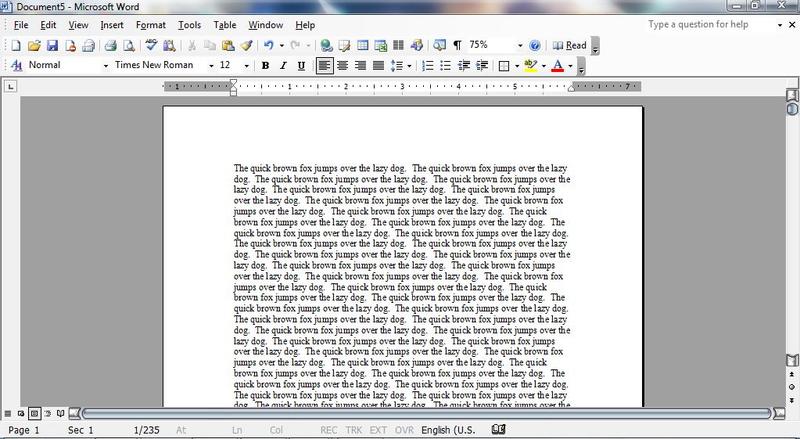
This Easter Egg is in Hebrew The Easter egg in English (Word 2003). Word (Microsoft) - Typing Exercise Easter Egg (italian)
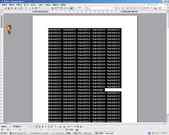
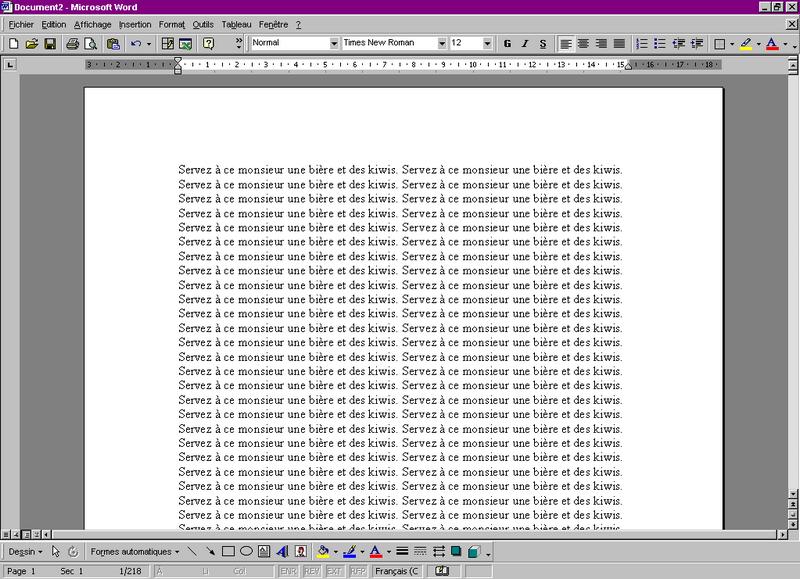
for egg Typing Exercise in Chinses- It says: The egg in french in Word 2000 (Tranlation: Serve to this man a beer and kiwis)
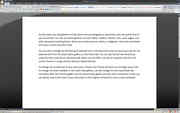
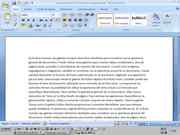
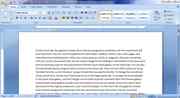
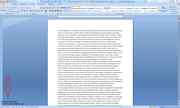
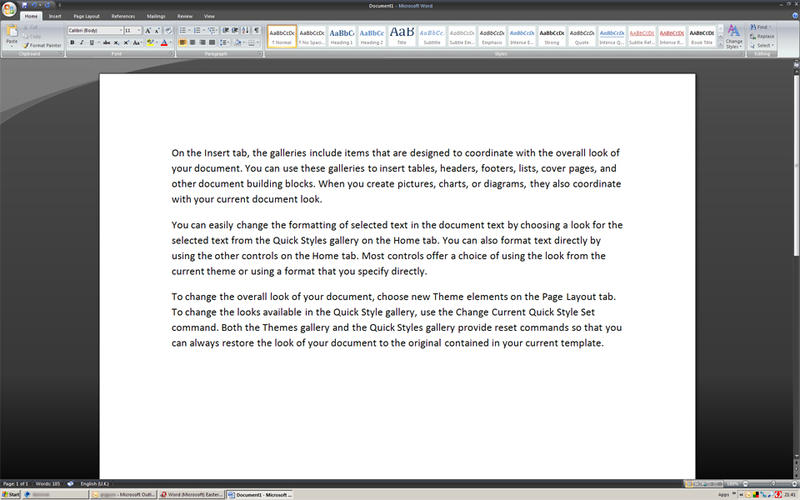
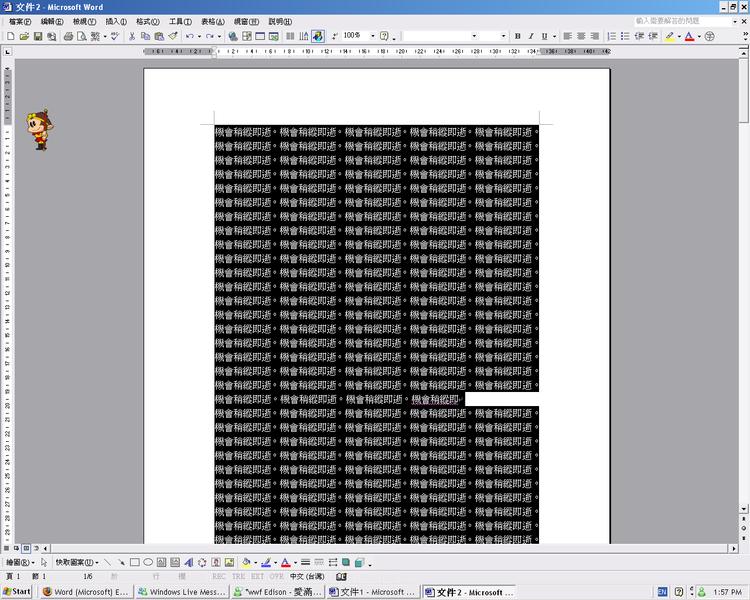
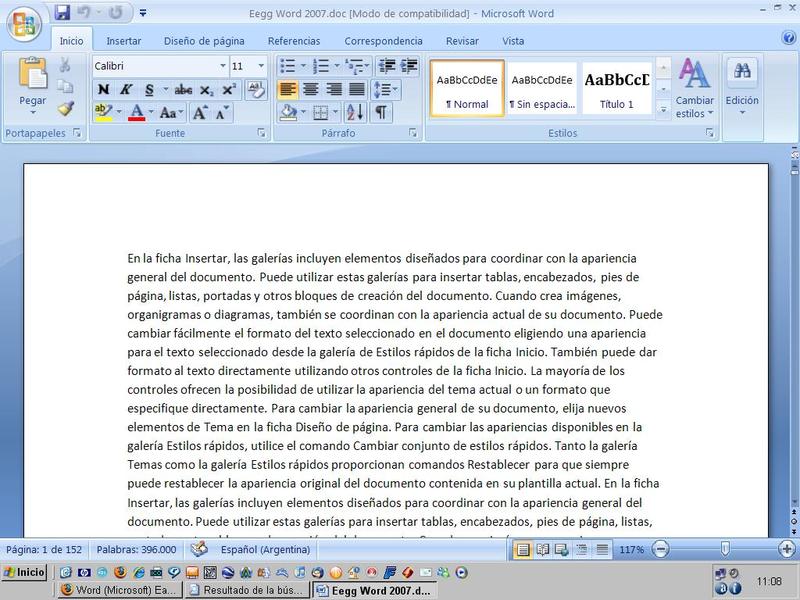
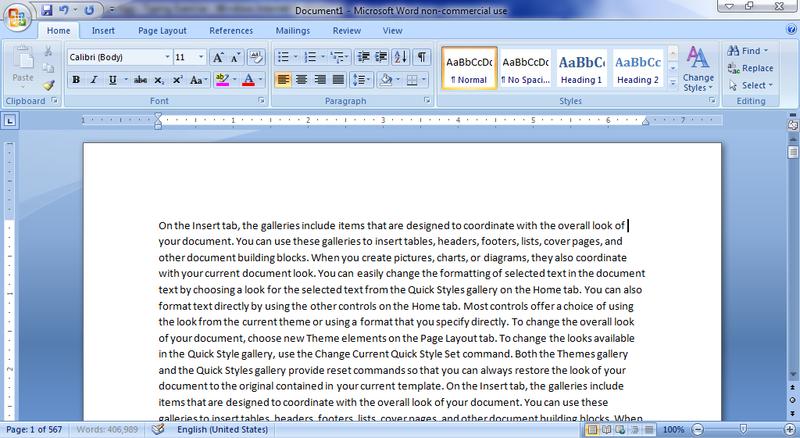
for egg "Word (Microsoft) - Typing Exercise" - example of the egg in Word 2007 Typing Exercise in Chinses- It says: "The opportunity is fleeting." The egg in french in Word 2000 (Tranlation: Serve to this man a beer and kiwis)
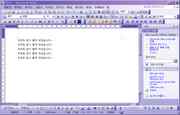
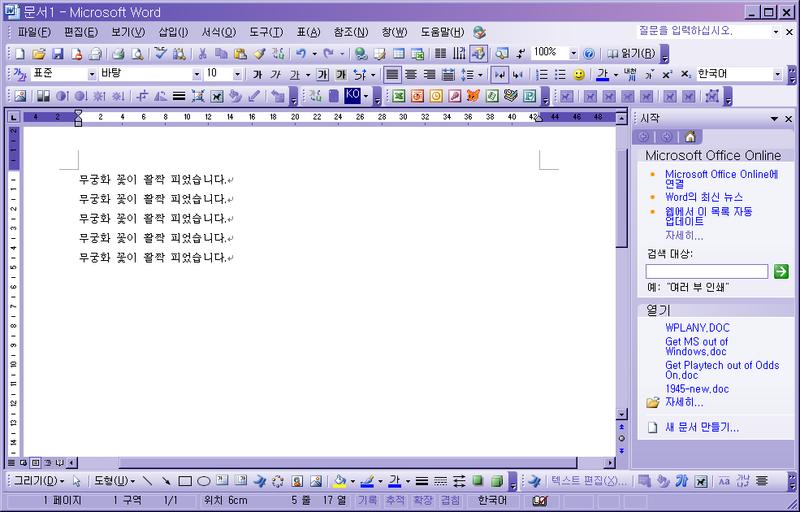
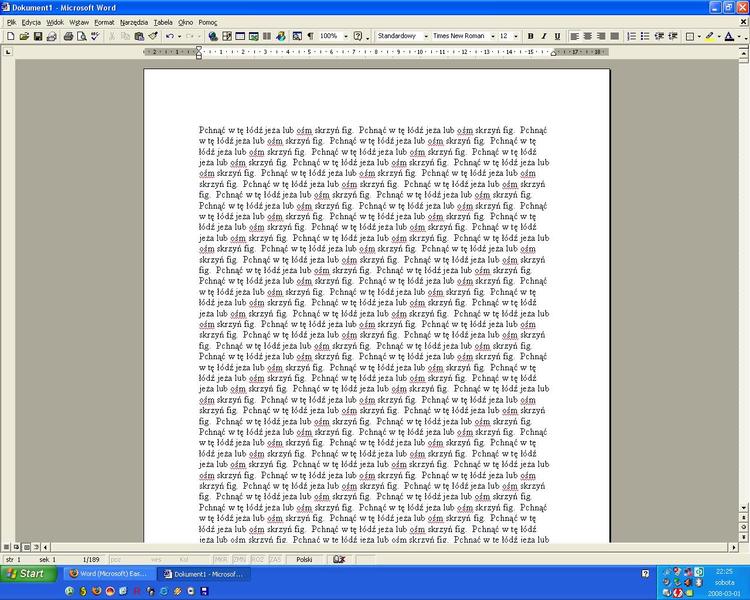
The Korean Word egg (It would be: 무궁화 꽃이 활짝 피었습니다) The Easter egg in Polish (word 2000) Typing  Exercise in Polish
The Korean Word egg (It would be: 무궁화 꽃이 활짝 피었습니다) The Easter egg in Polish (word 2000) Typing Exercise in Polish
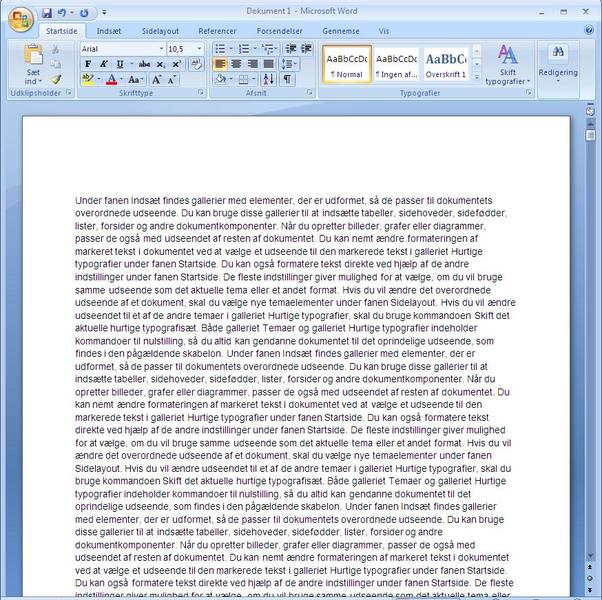
The egg in Danish Word 2007 Eegg word 2.007 castellano
Comments:
Upendra Singhai writes:
This is not at egg. This is documented at support.microsoft.com/support/ kb/articles/Q180/6/85.ASP IT SAYS: Word includes a way to quickly insert sample text into a document. To do this, type the following =rand() and then press ENTER. The inserted sample text is as follows: The quick brown fox jumps over the lazy dog. The quick brown fox jumps over the lazy dog. The quick brown fox jumps over the lazy dog. The quick brown fox jumps over the lazy dog. The quick brown fox jumps over the lazy dog. NOTE: This feature is disabled when the "Replace text as you type" option is turned off. (To turn this option off, click AutoCorrect on the Tools menu, click the AutoCorrect tab, and click to clear the "Replace text as you type" check box.) MORE INFORMATION By default, each paragraph contains five sentences. You can control how many paragraphs and sentences you want by adding numbers inside the parentheses. The =rand() function has the following syntax =rand(p,s) where p is the number of paragraphs and s is the number of sentences you want to appear in each paragraph.
179 of 194 people found this comment helpful. Did you? Yes
Homer writes:
I could use any number I wanted. eg: =rand(10,9). If you multiply the two numbers, you get the number of repeated sentences the egg created.
33 of 51 people found this comment helpful. Did you? Yes
Willy Wonka's Lover writes:
In my Russian version of Microsoft Word it sais lots of copies of a phrase "Ñúåøü åù¸ ýòèõ ìÿãêèõ ôðàíöóçñêèõ áóëîê, äà âûïåé ÷àþ." which means "Eat some more of these soft French buns, and drink some tea" I wonder who put that in! lol It's quite amusing.
24 of 37 people found this comment helpful. Did you? Yes
jaras writes:
Hi. In Polish edition of my Word 2000 there is a sentence: "Pchn¹æ w tê ³ódŸ je¿a lub oœm skrzyñ fig." All polish letters are here :-). Greetings from Poland. -- jaras
19 of 32 people found this comment helpful. Did you? Yes
dinnerbone writes:
In microsoft office 2007 BETA, =rand() now says: On the Insert tab, the galleries include items that are designed to coordinate with the overall look of your document. You can use these galleries to insert tables, headers, footers, lists, cover pages, and other document building blocks. When you create pictures, charts, or diagrams, they also coordinate with your current document look. You can easily change the formatting of selected text in the document text by choosing a look for the selected text from the Quick Styles gallery on the Home tab. You can also format text directly by using the other controls on the Home tab. Most controls offer a choice of using the look from the current theme or using a format that you specify directly. To change the overall look of your document, choose new Theme elements on the Page Layout tab. To change the looks available in the Quick Style gallery, use the Change Current Quick Style Set command. Both the Themes gallery and the Quick Styles gallery provide reset commands so that you can always restore the look of your document to the original contained in your current template.
12 of 20 people found this comment helpful. Did you? Yes
M~ao writes:
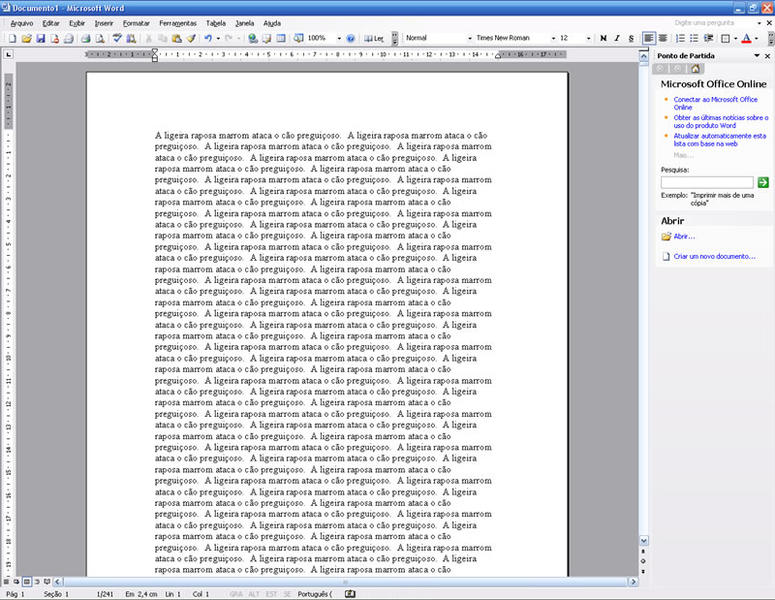
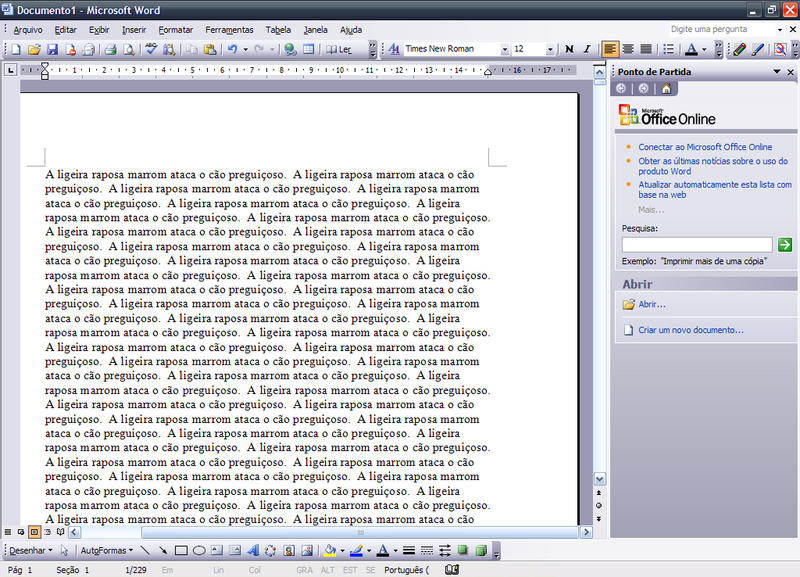
In other languages the sentence is translated too when you do it. For example, in Brazilian Portuguese, the sentence is "A ligeira raposa marrom ataca o cão preguiçoso", but the translated sentence don't have all words A to Z
13 of 23 people found this comment helpful. Did you? Yes
ben writes:
This is not a Easter Egg, When you type this in all it does is give you help. It says: On the Insert tab, the galleries include items that are designed to coordinate with the overall look of your document. You can use these galleries to insert tables, headers, footers, lists, cover pages, and other document building blocks. When you create pictures, charts, or diagrams, they also coordinate with your current document look. You can easily change the formatting of selected text in the document text by choosing a look for the selected text from the Quick Styles gallery on the Home tab. You can also format text directly by using the other controls on the Home tab. Most controls offer a choice of using the look from the current theme or using a format that you specify directly. To change the overall look of your document, choose new Theme elements on the Page Layout tab. To change the looks available in the Quick Style gallery, use the Change Current Quick Style Set command. Both the Themes gallery and the Quick Styles gallery provide reset commands so that you can always restore the look of your document to the original contained in your current template. Ben
5 of 7 people found this comment helpful. Did you? Yes
lewis82 writes:
That's the french: "Servez à ce monsieur une bière et des kiwis" ...
11 of 21 people found this comment helpful. Did you? Yes
Tigger448 writes:
This comes up also if you look in the fonts section of your system files and open one.
4 of 8 people found this comment helpful. Did you? Yes
Conax writes:
I could just type =rand() and omit the numbers! I'm using Word 2000.
13 of 27 people found this comment helpful. Did you? Yes
XavierS writes:
This was the same text that appears when going to Control Panel / Fonts and open a randomly font to show a font sample look. The definitive 2007 version shows the same text as on Beta and is different that in previous versions.
2 of 7 people found this comment helpful. Did you? Yes
koira writes:
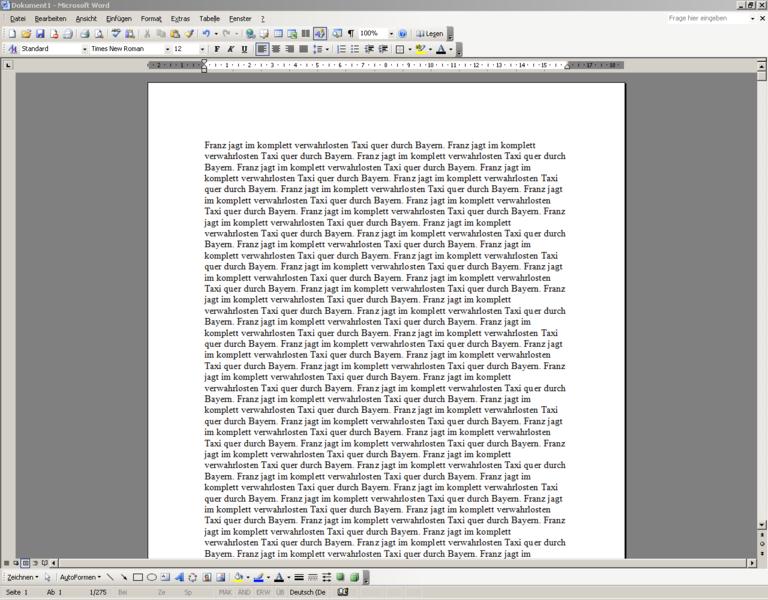
in german, it's "Franz jagt im komplett verwahrlosten Taxi quer durch Bayern. Franz jagt im komplett verwahrlosten Taxi quer durch Bayern" which means something like "franz drives in the complete silly taxy across bavaria"
3 of 10 people found this comment helpful. Did you? Yes
Loginer writes:
I tried it with the swedish word. There it standed "Flying snipes searhing for rest on soft tussocks" on swedish badly spelled("Flygande bäckasiner söka hwila på mjuka tuvor", it should be "Flygande beckasiner söker vila på mjuka tuvor").
5 of 15 people found this comment helpful. Did you? Yes
OzJimmy writes:
The numbers you enter are for the paragraphs, and sentences per paragraph. Go to www.lipsum.com and you can ancient latin text to replace the text used.
2 of 9 people found this comment helpful. Did you? Yes
Dem0nShad0w writes:
This really works! If you use the two numbers you are given you'll end up with about 235 pages of it!
8 of 22 people found this comment helpful. Did you? Yes


Register - My Settings - FAQ - Privacy Policy - About Us - Contact Us