Belching Cat in Version 4.0 -
7.5/10 with 31 votes
1. With photoshop running go to apple menu
2. Hold option key and pull down to about photoshop
3. You get beta splash screen
4. hold command key and click cat's nose
5. Belch!!
1 Comments -
read or post
Credit Scroll -
7.1/10 with 59 votes
1.Hold Alt and CTRL keys
2.Goto- Help/About Photoshop..
3.Wait 7 or so seconds, and it scrolls.
4.Hold ALT to speed it up.
5.Hold The ALT Key, Hold the CTRL key.
6.Click on the "sun" (eye) with left mouse button
7.Let go of the ALT, then the...
more
4 Comments -
read or post
Strange Cargo -
7.1/10 with 28 votes
1. With Photoshop open
2.Hold down the command (apple) key
3. Go to the apple menu & choose about photo shop
4. You will see the latest second credits screen -Strange Cargo
5. If you look in the sun you will see the Above eye
6. If you look...
more
1 Comments -
read or post
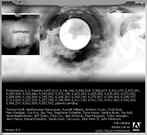 Hidden Face (v5.0)
 -
7.1/10 with 190 votes
1. Start Photoshop application
2. Holding the option and command keys click on "about Photoshop" in the apple menu
3. Take a screen shot of the "strange cargo" splash screen
4. Open the screen shot using Photoshop
5. Go to the channels palette...
more
10 Comments -
read or post
Weird Secret Messages -
7.0/10 with 1624 votes
1.THIS IS A GEM!!!!! Hold the Alt key while you open the About Photoshop option
2.The usual Electric Cat screen appears. But wait !!!
3.Wait several seconds for the credits to begin scrolling
4.We all know pressing the Alt key will speed them up......
more
49 Comments -
read or post
Photoshop 6.0.1 Weird! -
7.0/10 with 165 votes
It will work in 6.0 also.
1. Open PhotoShop 6
2. hold down CTRL-ALT
3. go to Help > About PhotoShop...
4. see the cat (Venus in Furs)
5. wait for the Credits to start (FAST)
6. press Alt to speed up the credits
7. Now, while they're speeding,...
more
1 Comments -
read or post
Box Burp! -
7.0/10 with 533 votes
1.Hold Ctrl + Alt at the same time.
2.While still holding down these keys, go to Help - About Photoshop
3.The Strange Cargo Splash screen comes up
4.Turn on your sound, and type "burp" on the keyboard.
2 Comments -
read or post
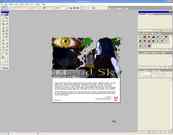 Photoshop 7 Liquid Sky Splash Screen
 -
6.4/10 with 402 votes
1) Open Photoshop 7.
2) While holding down the 'Ctrl' key, select 'Help' > 'About Photoshop'.
By doing this, you will see the "Liquid Sky" splash screen. Liquid Sky was the code name used for Photoshop 7 during its development.
10 Comments -
read or post
Merlin -
6.3/10 with 82 votes
1. Show Layers
2. Goto Palette OPtions while holding down Option
3. Merlin Appears!
4. Hit Begone!
5. Go to the Palette Options and many Merlins will be on your Palettes
2 Comments -
read or post
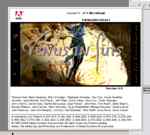 Photoshop 6.0 Cat!
 -
6.1/10 with 390 votes
1. Open PhotoShop 6
2. hold down CTRL-ALT
3. go to Help > About PhotoShop...
4. see the cat (Venus in Furs)
18 Comments -
read or post
Seagull and Crate (v5.5) -
6.0/10 with 104 votes
Open version 5.5 of Photoshop while holding down the Command + Option keys.
Voila!
1 Comments -
read or post
Special Thanks to the Owner of the Product -
6.0/10 with 6 votes
First open adobe photoshop 6 (and above). Click on Help<About Photoshop. Wait until the credits start moving. Either wait, or click Alt until it says:"Extra special thanks to (name of the liscensed user), one of our favorite customers."
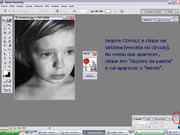 Merlin Abracadabra
 -
5.9/10 with 306 votes
1.Hold down Ctrl + Alt
2.Click the small arrow on the layer pallette
3.Choose layer option
4.Begone!
6 Comments -
read or post
Strange Cargo Credits (v5.0) -
5.8/10 with 151 votes
1.Hold Ctrl + Alt + Shift at the same time
2.While still holding down these keys, go to Help - About Photoshop
3.Check out the Strange Cargo Credits
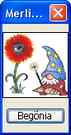 Secret Merlin Screen
 -
5.7/10 with 137 votes
1.Hold down the Option key
2.Choose "Palette Options..." from the Layers palette
3.Merlin window appears
6 Comments -
read or post
Darn Cat Again (v4.0 LE) -
5.6/10 with 17 votes
1.Start Adobe Photoshop 4.0 LE
2.Immediately hold down control+Alt same time
3.Watch Splash Screen.
4.Have Fun....
3 Comments -
read or post
 Dogs in Photoshop 7.0.1
 -
5.4/10 with 19 votes
Ok, here are the steps :
1. Open a new image in Photoshop (size doesn't matter)
2. Select the text tool
3. Click on the "Toggle the Character and Paragraph palletes" button located on the top-right of the menu.
4. In the character tab, the first box...
more
1 Comments -
read or post
 A Different About Dialog
 -
5.4/10 with 5 votes
1. Open Adobe Photoshop of any version, or Image Ready.
2. Press on Help, and click on About while pressing Ctrl.
3. See the new about dialog.
(Every versions of Photoshop, and Image Ready has a difference dialog, and image. Photoshop, and Image...
more
 Dark Matter
 -
5.3/10 with 17 votes
This egg is similar to the one in Photoshop 7....
Hold down control key and select "About Photoshop" from the help menu.
You will see the "Dark Matter" picture and the authors names and other information scrolling up beneath the picture.
I believe...
more
-
4.9/10 with 76 votes
1. this egg will also work on a "normal" credit screen (about photoshop)
2. wait for the scroll to roll
3. point the mouse anywhere in the picture
4. hit alt-ctrl-left click, release in that order
5. repeat until the 'special' messages appear...
more
3 Comments -
read or post
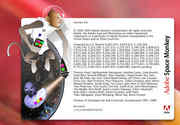 Adobe Space Monkey
 -
4.5/10 with 10 votes
-Hold Control
-Click Help>About Photoshop
Instead of the normal Crdit screen Adobe Space Monkey will appear.
This egg is similar to the ones found in Photoshop 7 & 8
2 Comments -
read or post
Photoshop Cat Eyes -
4.3/10 with 33 votes
bugggally eyeeess
- open photoshop 7
- hold down Ctrl, then click help, then about photoshop
- when the liquid sky splash screen comes up, press "print screen", which copys your screen to your clip board
- click anywhere on the splash screen
-...
more
1 Comments -
read or post
Tiger Mountain -
4.2/10 with 28 votes
1. Hold down CMD and Option keys
2. Choose about photoshop from apple menu
3. Tiger Mountain About Box appears
1 Comments -
read or post
Jokes -
4.0/10 with 82 votes
1. Open "About Photoshop"
2. Wait for the credits to scroll. (Option key makes them speed up.)
3. (Be sure to read the last one.)
4. After credits have scrolled through once, click on the Adobe logo in the upper left corner of the About screen....
more
-
2.4/10 with 77 votes
1.Launch Photoshop
2.Hold down the "Alt" Key
3.There's The B.E.C. ! ! !
2 Comments -
read or post
Different Startup Screen -
1.7/10 with 150 votes
1.Change date to April 1st any year
2.Start up Photoshop as usual
6 Comments -
read or post